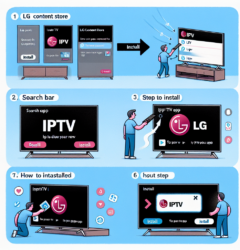

Many Canadians love using Chromecast because it offers an easy, affordable way to stream content on any TV with an HDMI port. If you want to learn how to set up IPTV on Chromecast, the process can be surprisingly simple once you understand the available methods and the apps that support casting. This guide explains every option, walks you through step-by-step instructions, and gives you expert advice to ensure smooth and reliable IPTV streaming.
Whether you’re new to IPTV or you’re switching from a smart TV or Android box, you’ll learn everything you need to start casting high-quality live channels, sports, movies, and series to your Chromecast device. The focus keyphrase “how to set up IPTV on Chromecast” will also be used naturally throughout this article to help you find the information you need quickly.
Before you jump into installation steps or app configurations, it helps to make sure you have the right tools and services in place. When you start with the proper setup, you reduce issues with buffering, lag, and poor video quality.
You can use any Chromecast model, including:
The Chromecast with Google TV allows native app installation, which makes IPTV setup far easier compared to basic casting-only models.
For smooth IPTV streaming, your Wi-Fi matters just as much as your IPTV provider. If your connection is weak or inconsistent, you will face freezing and buffering even when your provider is excellent.
For guidance on optimizing your network for IPTV, check out this deep technical guide on how to improve Wi-Fi for IPTV.
Your provider must supply either:
These are required to load your IPTV channels into a compatible app before casting to Chromecast.
Depending on your chosen method, you may use an Android phone, iPhone, iPad, or a laptop running Chrome. These are used to either install apps that support casting or to mirror your screen.
There are several ways to make IPTV work on Chromecast. The best method depends on your Chromecast model and whether you want to cast from apps or install apps directly on your Chromecast with Google TV.
This is the most seamless and stable method. If you have a Chromecast with Google TV, you’ll be able to install IPTV apps directly from the Google Play Store. This removes the need for screen mirroring and provides a dedicated streaming interface similar to an Android TV box.
Many IPTV apps for Android support built-in Chromecast casting. This lets you stream channels directly to your TV without wires or complex setup. If your IPTV player supports casting, this method is fast and convenient.
If you prefer using a PC or don’t want to install apps, you can cast IPTV directly from your Chrome browser. This can work with web-based IPTV players or IPTV apps installed as browser extensions.
Screen mirroring is the fallback method. It’s less stable than direct app casting but works when your IPTV app doesn’t support Chromecast. This option mirrors your entire display onto your TV.
If your Chromecast has a remote and Google TV interface, use this method. It is highly recommended because it delivers the best experience and the least amount of lag.
Make sure your Chromecast with Google TV is connected to your home Wi-Fi network. It must be the same network your phone or laptop uses if you plan to sync settings or cast additional apps later.
Using the remote, navigate to the Google Play Store app. This is where you’ll install the IPTV player that suits your subscription details.
Some recommended IPTV players for Chromecast with Google TV include:
These apps generally deliver smooth live TV, EPG compatibility, and strong channel organization.
Open the IPTV app and enter the login format provided by your service:
If you’re unsure how to load these formats, check this helpful guide on how to load an M3U playlist.
Once loaded, your playlist will display categories such as Live TV, Movies, Series, and Catch-Up. Select a channel and begin watching on your Chromecast instantly.
Whether you use an Android phone or tablet, this method works well as long as the IPTV app supports Chromecast.
You can choose from many casting-compatible IPTV apps, including:
Input your IPTV playlist or Xtream Codes, and let the app load all available categories.
Once your channels load, look for the Chromecast icon in the top-right corner of the screen. Tap it and select your Chromecast device.
Your TV will now display the IPTV content you selected. You can control playback from your Android device.
If you prefer using a laptop, the Chrome browser provides a direct casting feature.
Ensure your laptop is connected to the same Wi-Fi network as your Chromecast.
You can either use a web-based IPTV player or open a local IPTV app that runs inside Chrome.
Select “Cast,” then choose your Chromecast device.
The tab cast feature allows you to broadcast whatever appears in your browser tab directly to your TV.
This is not the ideal method but works when your IPTV player doesn’t support native Chromecast.
To mirror your Android screen:
Apple devices cannot directly mirror to Chromecast without a third-party app. You’ll need to install a mirroring app like “Streamer for Chromecast” or “Replica.” Follow the prompts inside the app to mirror your screen.
Not all IPTV players support casting, so choosing the right app greatly improves performance. Below is a comparison based on casting quality, interface, and stability.
| IPTV App | Chromecast Support | Best For |
|---|---|---|
| IPTV Smarters Pro | Yes | Live TV and catch-up |
| GSE Smart IPTV | Yes | Multiple playlists and advanced users |
| Web Video Caster | Yes | Web-based IPTV streaming |
| TiviMate | Limited | Advanced organization on Android TV devices |
| OTT Navigator | No (screen mirror) | Users that prefer customization |
Chromecast offers several advantages over traditional cable or streaming boxes, especially for Canadians who want simple wireless IPTV streaming.
The ability to cast from any mobile device makes Chromecast extremely flexible and beginner-friendly.
Compared to premium Android boxes or Apple TV, Chromecast is one of the most budget-friendly IPTV devices available.
As long as your TV has HDMI, you can enjoy IPTV without upgrading to a new smart TV.
Even with the right setup, some users experience buffering, lag, or app crashes. Here are the most common problems and how to fix them.
This is usually caused by Wi-Fi interference or low internet speeds. For tips, see this guide on how much internet speed you need for IPTV.
This happens with certain streaming formats that Chromecast cannot decode. Try switching to another IPTV player.
Mirroring is less stable than direct casting. If possible, switch to an app that supports native Chromecast casting.
If you want optimal performance when using IPTV on Chromecast, the following tips will help you achieve a more reliable, lag-free streaming setup.
5 GHz networks reduce interference and deliver faster speeds, especially for 4K IPTV channels.
Reducing physical distance between the devices improves signal strength and image quality.
If you purchase a USB-C Ethernet adapter, you can connect your Chromecast directly to your router for rock-solid performance.
App updates often improve Chromecast support and fix bugs that cause freezing.
Using IPTV technology is legal in Canada, but the legality of the content depends on your provider. Always ensure your provider offers properly licensed content. For more details, read the full guide on whether IPTV is legal in Canada.
Now that you understand how to set up IPTV on Chromecast, you can enjoy a flexible and convenient way to stream live TV, sports, movies, and series directly to your television. Whether you install apps directly on a Chromecast with Google TV or cast from a mobile device, the experience can be smooth and enjoyable with the right setup.
By using strong Wi-Fi, choosing the right IPTV app, and following the steps in this guide, you’ll be able to watch your favourite content without interruptions. If you ever need to revisit the steps or troubleshoot issues, remember that this complete guide covers everything from installation to optimization. And with that, you’re fully equipped with the knowledge of how to set up IPTV on Chromecast like a pro.
We reply by email — usually within a few hours.
We answer every single message
Thanks for reaching out. We'll reply to your email as soon as possible — keep an eye on your inbox (and spam folder, just in case).