
If you’ve been searching for a complete guide on how to set up IPTV on Apple TV, this 2025 edition breaks everything down in a simple, Canadian-friendly way. Apple’s ecosystem has become more open to streaming apps over the past few years, and IPTV apps for Apple TV continue to improve with smoother navigation, crisp 4K support, and fast channel switching.
Whether you’re upgrading from an old device or setting up IPTV on Apple TV for the first time, this guide explains what to install, how to log in, how playlists work, and how to optimize your connection for a buffer‑free experience.
To help you get the most from your setup, this article also includes pro tips, troubleshooting strategies, app recommendations, and expert insights into IPTV performance on Apple’s tvOS platform.
Before diving into the step‑by‑step instructions, make sure you have the essentials ready. Apple TV is very streamlined, but IPTV still requires a few specific details from your provider.
Any Apple TV running tvOS 15 or later will work well with IPTV apps. Most Canadians today use:
The Apple TV 4K models offer the smoothest performance thanks to faster processors, higher frame-rate support, and modern app compatibility.
You will need either:
If you’re unsure which service to choose, consult a guide like how to choose the right IPTV provider for a safer and more informed decision.
Apple TV handles 4K beautifully, but only if your internet can keep up. For best performance:
To avoid freezing, learn more about recommended speeds from this helpful breakdown of how much internet speed you need for IPTV.
Apple TV does not support direct M3U playback. You must install an IPTV player such as:
Now that you have the essentials ready, follow this simple walkthrough. These instructions work on all Apple TV models that support tvOS.
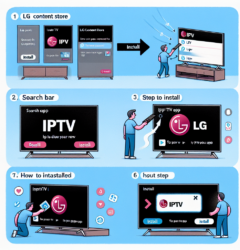
Start by navigating to the App Store icon on the Apple TV home screen. Use the Siri remote to search for the IPTV app you want to install.
Search using one of these terms:
Select the app, confirm installation, and wait a moment while the app downloads to your device.
Most IPTVs offer two login styles:
Xtream Codes logins often load channels faster and update EPG (Electronic Program Guide) more reliably.
Depending on your provider, enter the following:
Be careful while typing URLs or long characters using the Siri remote. A simple typo can prevent your playlist from loading.
Once credentials are entered, the app will begin synchronizing:
This step usually takes 10–30 seconds on modern Apple TV hardware.
Your IPTV app will now display your content categories. You can begin watching immediately, exploring channels, video on-demand libraries, and catch‑up features depending on what your provider supports.
IPTV performance varies depending on the app. Apple’s tvOS environment is optimized for stability, which means some apps feel more polished than others. Below are the top apps used by Canadian IPTV viewers.
One of the most popular IPTV apps worldwide. It has an easy-to-read interface, strong compatibility, and solid EPG support.
Widely considered the most “Apple‑like” IPTV app in terms of layout and smoothness. Designed specifically for tvOS.
A classic IPTV app still popular because of its compatibility and flexibility.
Easy to set up and user-friendly, but may require activation fees and may not be available in all regions.
Even with a strong IPTV service, Apple TV performance depends heavily on your home network. If your streams freeze or buffer, these adjustments can dramatically improve stability.
If your Apple TV is close to your router, plug it in with Ethernet. Hardwired connections reduce lag and avoid interference.
If your router is more than 4–5 years old, upgrading may make a huge difference. Modern routers manage 4K traffic more efficiently and reduce latency.
To strengthen wireless performance, centralize your router, reduce interference from other devices, and use 5 GHz Wi‑Fi whenever possible.
Most IPTV apps include internal settings for:
A quick restart clears memory and improves long-term performance.
If your IPTV streams glitch, freeze, or display errors, these quick fixes often resolve the problem.
For more help with these issues, check a complete guide on how to fix IPTV buffering problems.
Some IPTV users choose a VPN to enhance privacy or reduce throttling from internet providers. Apple TV does not allow VPN apps directly, but you can still use one through alternative methods.
Install a VPN at the router level so every device, including the Apple TV, is automatically protected.
Share a VPN‑connected hotspot from your laptop or smartphone. Apple TV will route traffic through the VPN connection.
Some VPN providers offer SmartDNS features, which are easier to configure on Apple TV.
IPTV itself is legal in Canada, as long as the streams come from fully licensed sources. Apple allows IPTV apps on tvOS because they are simply video players. However, IPTV providers must operate within Canadian copyright laws.
For more details, you can learn about IPTV legality in Canada to stay fully informed.
Apple TV is known for stability, but how does it compare to Android boxes, Firestick, or smart TVs? Here’s a quick overview to help you choose the right device for your home.
If you want the best possible experience, these proven adjustments can take your setup from good to exceptional.
Apple TV lets you quickly customize your IPTV favorites. Create lists for sports, movies, Canadian channels, and international TV for quicker navigation.
This reduces motion blur and makes live sports look more natural.
Although IPTV apps don’t fully integrate into Siri, you can still use voice commands to navigate Apple TV menus more quickly.
Most IPTV players push updates every few months to improve performance and add features.
Yes, but only through third‑party IPTV apps that allow importing playlist URLs.
Not necessarily, but some Canadians use a VPN to prevent throttling or to enhance privacy.
Yes, Apple TV 4K handles 4K streams exceptionally well as long as your internet speed is sufficient.
iPlayTV and IPTV Smarters Pro are the most popular and user-friendly choices for Apple TV in 2025.
Learning how to set up IPTV on Apple TV is easier than ever thanks to improved apps, modern tvOS features, and better compatibility with M3U playlists and API logins. Whether you want sports, international channels, movies, or TV shows, Apple TV provides a smooth and reliable experience with the right player app and a strong internet connection.
By choosing a reputable IPTV provider, optimizing your network, and following the step‑by‑step instructions in this guide, you can enjoy high‑quality streaming across all your Apple TV devices. If you’re exploring additional ways to enhance your entertainment setup, check the FlixTele.ca homepage for more resources, buying guides, and expert tips.
With this complete 2025 edition, you now know exactly how to set up IPTV on Apple TV and get the most out of your streaming experience in Canada.