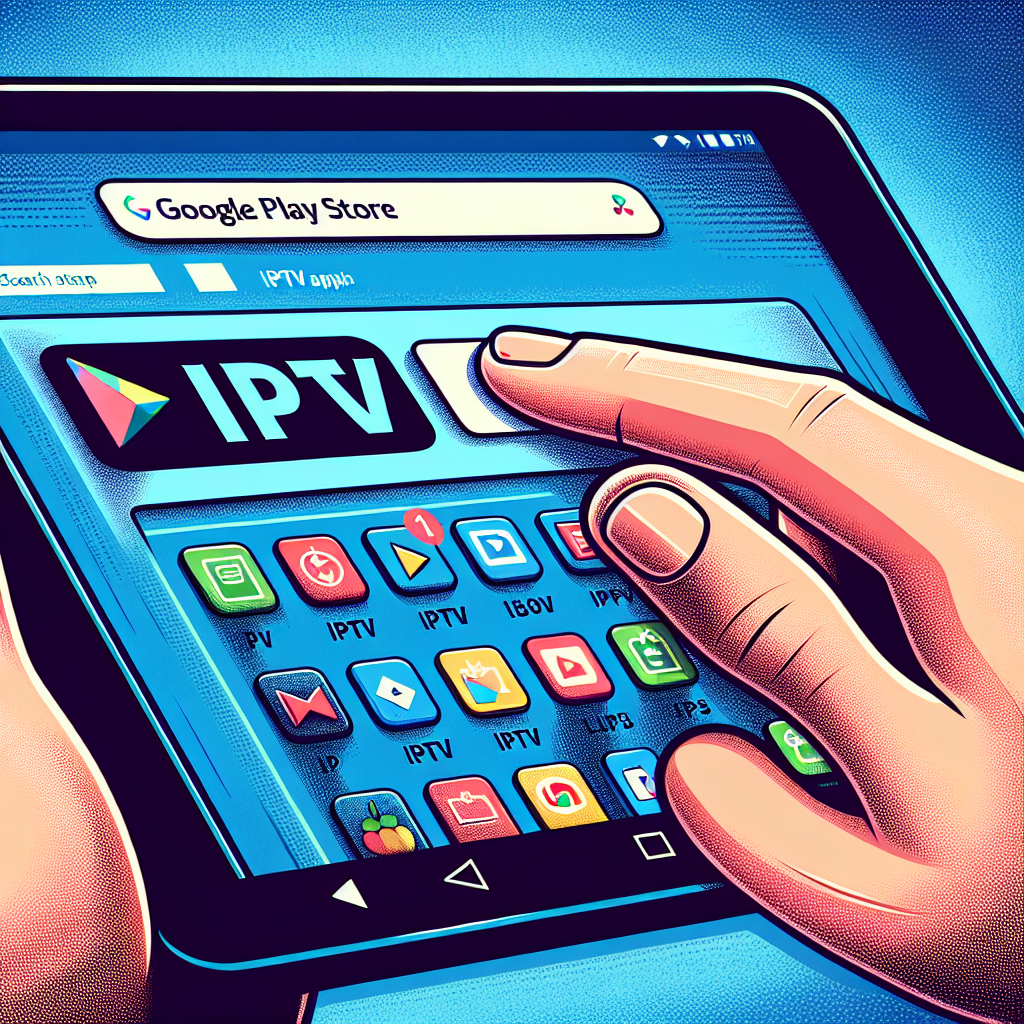
If you’re trying to understand how to install IPTV on Android phones & tablets, you’re in the right place. Android devices are among the easiest and most flexible platforms for IPTV, offering fast performance, app freedom, and portability. Whether you watch live TV, movies, or international channels, Android provides a smooth streaming experience across Canada.
This complete guide walks you through the installation process, recommended apps, common troubleshooting steps, and expert-level tips to get the best results. If you’re setting up IPTV for the first time, this article will make everything surprisingly simple.
Let’s begin with the essentials you need before you install anything.
Before learning how to install IPTV on Android phones & tablets, ensure you have everything ready. IPTV requires more than just an app—it also depends on your internet speed, playlist type, and device compatibility.
IPTV is entirely internet-based, so connection quality will make or break your experience. In most Canadian households, the connection is strong enough for HD streaming, but if you experience buffering, check your plan speeds.
For more help choosing the right connection, see this detailed guide on the best internet providers in Canada for IPTV.
Unlike a TV box or smart TV, Android gives you access to dozens of powerful IPTV apps. Some apps focus on playlists, others excel in EPG features, and some are ideal for beginners. The goal is to pick an app that fits your comfort level.
You can find recommendations on the best IPTV apps for Android in 2025.
The app alone won’t provide channels. You need:
Your IPTV provider typically sends these details by email after signup.
Modern IPTV apps work best on newer Android versions. If your device is older, check for available updates under Settings → System → Software Update.
This is the core section of the guide. Follow these steps to get your device ready for IPTV streaming.
Open the Play Store on your Android phone or tablet. Search for your preferred IPTV app. For most users, IPTV Smarters Pro, TiviMate, or XCIPTV are excellent choices.
Tap Install and wait for the app to download. Installation usually takes just a few seconds, depending on your device and internet speed.
Once installed, open the app. The home screen may prompt you to select a login method. The three most common options are:
Your provider should give you:
Enter the information exactly as provided. A single mistake in an URL or password will cause channels to fail loading.
Once your credentials are entered, the app will download channel lists, EPG data (TV guide), and categories like Live TV, Movies, Series, or Catch-Up. This process may take up to 1–2 minutes on first launch.
Your IPTV service is now ready to use. Explore categories, test streams, and ensure your network is stable. If you notice any lag, don’t worry—we cover fixes later in this article.
There are dozens of IPTV apps available, each with strengths and weaknesses. Choosing the right one can dramatically improve your viewing experience. Below is a quick comparison based on Canadian user preferences.
Excellent for beginners. Offers easy login, clean menu navigation, and strong compatibility. Ideal for families and users who want a simple setup.
The most advanced IPTV app for Android. Offers customizable layouts, multiple playlists, and powerful EPG features. A paid subscription unlocks its full potential.
Stable, lightweight, and modern. Works smoothly even on older devices.
Great for users who prefer classic-style IPTV interfaces. Supports M3U and XML EPG formats.
Strong filtering tools, predictive search, and stable playback.
To make the process crystal clear, here’s a detailed example using IPTV Smarters Pro—one of the most popular Android apps.
Open the Play Store → Search “IPTV Smarters Pro”. Tap Install.
The app may request storage or network permissions. Approve them to enable channel loading.
This is the most reliable format for IPTV authentication. Your provider usually includes these three items:
Give your profile a name like “Main IPTV” or “Canadian IPTV”. This helps if you manage multiple playlists.
IPTV Smarters Pro will sync your playlist and load categories automatically.
You can now enjoy live TV, movies, and series on your Android phone or tablet.
Tablets offer a larger screen, making them an excellent streaming alternative to smart TVs or laptops. The installation process is nearly identical to phones, but there are a few small differences to keep in mind.
Most tablets support 1080p or 2K resolution. This is great for IPTV, but ensure that your chosen app supports the resolution correctly.
Tablets often have more internal storage. This helps with:
Some Android tablets allow HDMI-out or casting. This means you can turn your tablet into a portable streaming hub across your home or cottage.
Even when you know how to install IPTV on Android phones & tablets, glitches can still appear. These issues usually stem from internet problems, app limitations, or outdated playlists.
Buffering is the most common frustration. To fix it:
For a full guide, see how to fix IPTV buffering issues.
This may happen after an app update or provider change. Try:
If you hear no sound, change the player type in your app settings. Switching to VLC or MX Player often resolves audio codec issues.
Having IPTV installed is only half the battle. Optimizing your app settings ensures smoother playback and better performance—especially on older Android devices.
Android devices are generally secure, but because IPTV apps are third‑party tools, it’s essential to take precautions.
Always install IPTV apps from the Google Play Store when possible. Avoid random APK files unless recommended by your IPTV provider.
A VPN hides your IP address and ensures your streams aren’t tracked or throttled. It also protects your device on public Wi-Fi networks. Learn more about how VPNs help IPTV users here: how to use a VPN for IPTV in Canada.
Security patches reduce vulnerabilities and enhance stream stability.
Your Android phone or tablet can act as a streaming hub for other screens. This is helpful if you’re away from home or want to share content with family without installing IPTV on every device.
Many IPTV apps support Chromecast natively. Look for the Cast icon inside the video player area.
USB‑C to HDMI adapters allow your Android device to connect directly to TVs or monitors.
Enable Wireless Display or Miracast in your Android quick settings:
If you’re still not getting the performance you want after installation, these optimization tips can help dramatically.
Old routers struggle with HD and 4K IPTV. Consider an upgrade if your router is over five years old.
Streaming performance often drops between 7 pm and 10 pm. If possible, use the Catch-Up feature outside this window.
Background apps consume bandwidth and RAM. Close unnecessary apps before streaming.
Some tablets support USB-C to Ethernet. This provides an extremely stable connection.
Reinstallation often solves stubborn issues. Consider reinstalling if:
Now you know exactly how to install IPTV on Android phones & tablets, optimize your settings, and troubleshoot common issues. Android remains one of the best platforms for IPTV users in Canada thanks to its flexibility, wide app support, and strong performance.
If you take the time to choose the right app, keep your device updated, and use reliable IPTV login details, you’ll enjoy smooth streaming for years. The key is understanding your setup and applying the best practices outlined in this guide.
For more IPTV resources, tips, and device comparisons, visit the FlixTele IPTV blog or return to the home page for the latest streaming insights.